67
BU Score
Solid
DIGITAL CLOCK SHG2 LITE
✍️ bumetric analysis
“
DIGITAL CLOCK SHG2 LITE is an Android app from Y2PROM in the Tools category, currently rated 4.1★ across 12,152 ratings. Initial signal reads as largely positive sentiment, users highlighting consistency and feature depth.
Our BU Score puts it at 67: Solid (established niche player). For a Tools app, that means established niche player.
Track changes month-over-month in the Performance section below: live snapshot history and revenue forecast included.
📊 Performance Tracking LIVE
Loading…
Rating
—
Reviews
—
Forecast Revenue / mo
—
Snapshots tracked
0
since first record
Range:
💰 Forecast Revenue / mo
MODELRevenue forecast computed from BU's 234 trigger model on each snapshot. Calibrated against ground-truth from 58 verified-revenue apps.
🔬Forecast Breakdown — Why This Estimate?Top 4 of 4 triggers
Our ML model uses 200+ signals from public data. These are the most influential for this app:
| Mid install base (12,152 ratings)METRIC | +$5,500 | |
| Mature app (11y old)METRIC | +$1,500 | |
| Good rating (4.1★)METRIC | +$800 | |
| Ad-supported / freemiumMETRIC | +$600 |
METRIC = structural app data · REVIEW = mined from user reviews · ✓ VERIFIED = Stripe-verified anchor (TrustMRR)
📈 Reviews Growth
LIVECumulative review count from first BU snapshot. Each point = a tracked update.
⭐ Rating Trend
LIVEAverage rating evolution. Updates with each new review batch.
🗓️ Snapshot Timeline
HISTORYEach bar shows a tracked update and the metric delta from the previous snapshot.
App Specs
🔐 Own this app? Claim & verify MRR →🔖 v9.1.0🔄 updated 5y ago📂 Tools💰 Free📺 Ad-supported🚀 Launched 2014 (11y old)
📝 About this app
"【Note】
If you input your questions, bug reports or complaints in review form, it isn't notified developer. Please email directly (y2prom@gmail.com).
■Please inform us about the bug report by e-mail.
【How to use】
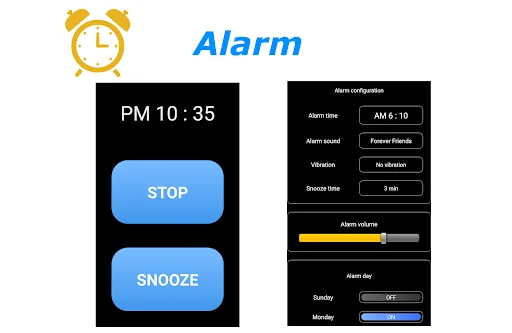
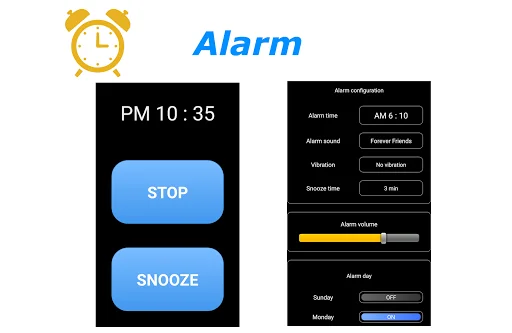
● Alarm setting
1. Select the alarm task from the alarm list and open the alarm setting.
2. Set the time to sound the alarm with the [Alarm time].
3. At [Alarm sounds], select the music file to sound at the alarm time.
4. [Vibration], you can select vibration action at alarm.
5. In the [Snooze time], you can set the time when the alarm sounds again.
6. At [Alarm volume], set the volume at alarm time.
7. At [Alarm day], Alarm operation date can be set for each day of the week.
8. To enable the alarm, please turn on the button on the left side of the alarm list.
9. The low power consumption function of Android may invalidate the alarm. After setting the alarm, please confirm whether automatic start of this application is not invalid.
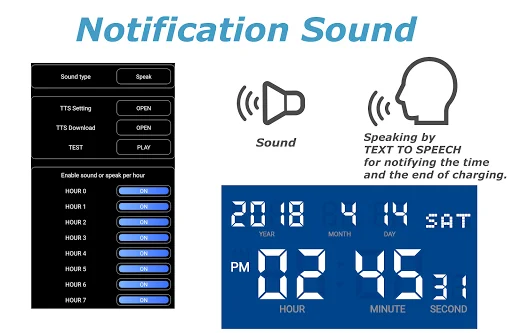
● Setting the notification sound
〇 Setting of time signal sound
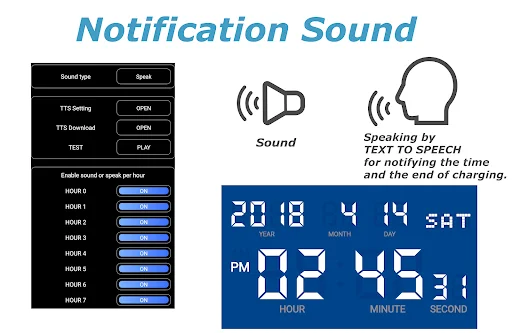
From the option button, select the Notification sound -> Time signal.
1. From [Sound type], select OFF, Sound, or Speaking.
2. If you select the sound, it will play a sound at 0 minutes per hour.
3. If you select the speaking, it will say the current time at 0 minutes per hour.
4. In the official version, you can change the type of sound from [Sound Select].
5. In the official version, you can restrict playing sound time at [Enable sound or speak per hour].
〇 Setting of charging completed sound
From the option button, select notification sound -> charge completed.
1. From [Sound type], select off, sound, or speech.
2. If you select the Sound, it will be played a sound when charging is completed.
3. If you select the Speaking, it will be played ""Charging was completed"" when charging is completed.
4. In the official version, you can change the sound from the sound selection.
○ Setting of TTS
To use the reading function, please set TTS. This application supports the Google text-to-speech engine. If other TTS engine is set, reading may not be performed normally.
1. From [TTS setting], you can open the TTS setting in Android system settings. Please make sure that the Google text-to-speech engine is set up.
2. From [TTS Download], open the download page of the Google text-to-speech engine. Please download or update the Google text-to-speech engine.
3. By the [Test], you can try the speaking of TTS. Please check the TTS setting if there is abnormality in reading aloud.
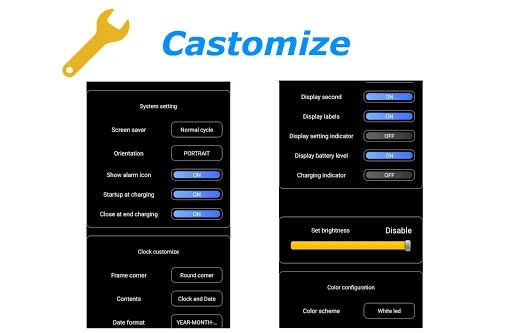
● Clock customization
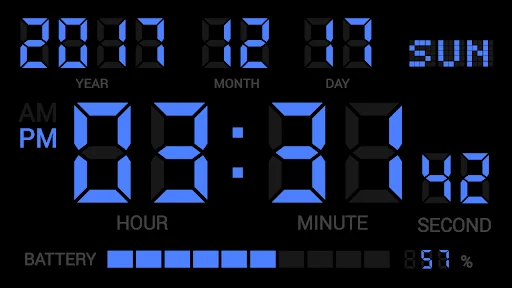
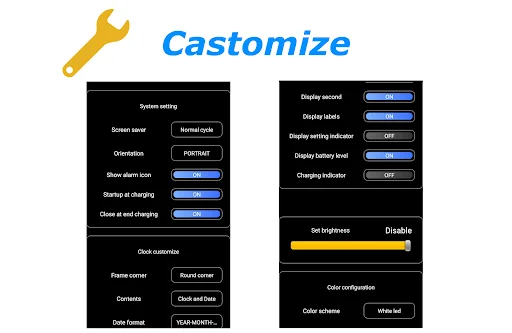
1. In [Screensaver], you can activate the screen saver to prevent screen burning.
2. [Orientation] is setting for clock orientation.
3. [Startup at charging] is for launch by starting USB charge.
4. [Close at end charging] is for close clock screen by end charging.
6. In [Frame corner], you can select the rectangle or round corner frame. If the background of the clock is black, the rounded corners will not be visible.
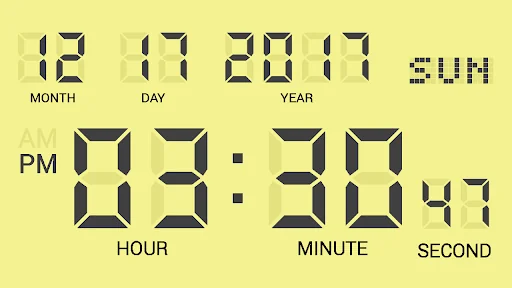
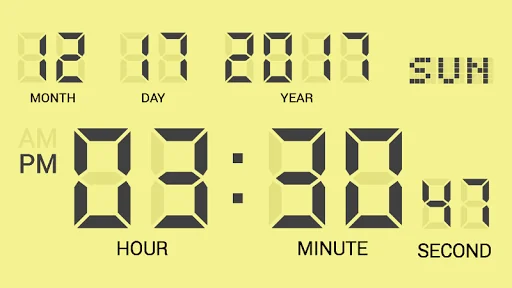
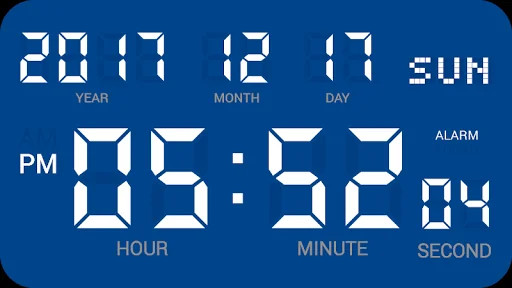
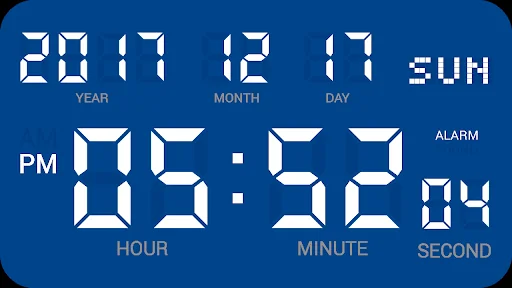
7. [Display contents] allows you to set the time and date to be displayed on the screen.
8. In [Date Format], you can change the position of year, month, and day.
9. In [Time format], the time range can be set from 1 to 12 or 0 to 23.
10. In [Colon blinking], toggles the presence or absence of a colon blink.
11. In [seconds display], toggles display of seconds.
12. In [Label display], switch the presence / absence of label display.
13. [Setting status display] toggles the presence / absence of display showing the setting status of alarm setting and notification sound.
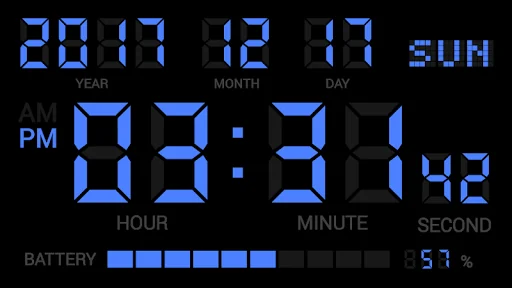
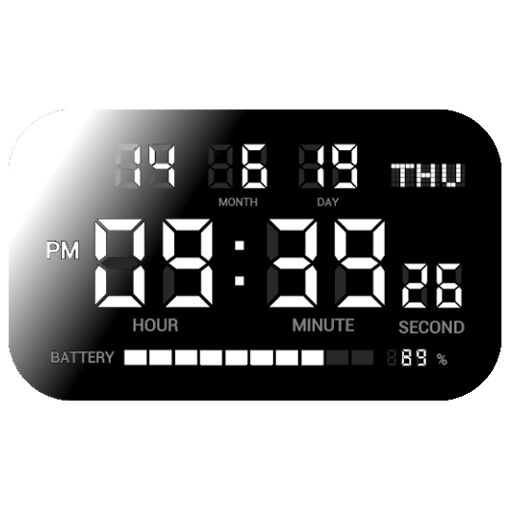
14. In [Battery level indicator], select whether or not to display the remaining battery level (gauge).
15. [Charging indicator] is expresses battery charging by battery level gauge.
16. [Screen brightness] adjust the brightness of the clock display.
17. [Color scheme] set the color scheme of the digital clock. In the paid version, you can set your favorite color by selecting Edit 1 to 5."
If you input your questions, bug reports or complaints in review form, it isn't notified developer. Please email directly (y2prom@gmail.com).
■Please inform us about the bug report by e-mail.
【How to use】
● Alarm setting
1. Select the alarm task from the alarm list and open the alarm setting.
2. Set the time to sound the alarm with the [Alarm time].
3. At [Alarm sounds], select the music file to sound at the alarm time.
4. [Vibration], you can select vibration action at alarm.
5. In the [Snooze time], you can set the time when the alarm sounds again.
6. At [Alarm volume], set the volume at alarm time.
7. At [Alarm day], Alarm operation date can be set for each day of the week.
8. To enable the alarm, please turn on the button on the left side of the alarm list.
9. The low power consumption function of Android may invalidate the alarm. After setting the alarm, please confirm whether automatic start of this application is not invalid.
● Setting the notification sound
〇 Setting of time signal sound
From the option button, select the Notification sound -> Time signal.
1. From [Sound type], select OFF, Sound, or Speaking.
2. If you select the sound, it will play a sound at 0 minutes per hour.
3. If you select the speaking, it will say the current time at 0 minutes per hour.
4. In the official version, you can change the type of sound from [Sound Select].
5. In the official version, you can restrict playing sound time at [Enable sound or speak per hour].
〇 Setting of charging completed sound
From the option button, select notification sound -> charge completed.
1. From [Sound type], select off, sound, or speech.
2. If you select the Sound, it will be played a sound when charging is completed.
3. If you select the Speaking, it will be played ""Charging was completed"" when charging is completed.
4. In the official version, you can change the sound from the sound selection.
○ Setting of TTS
To use the reading function, please set TTS. This application supports the Google text-to-speech engine. If other TTS engine is set, reading may not be performed normally.
1. From [TTS setting], you can open the TTS setting in Android system settings. Please make sure that the Google text-to-speech engine is set up.
2. From [TTS Download], open the download page of the Google text-to-speech engine. Please download or update the Google text-to-speech engine.
3. By the [Test], you can try the speaking of TTS. Please check the TTS setting if there is abnormality in reading aloud.
● Clock customization
1. In [Screensaver], you can activate the screen saver to prevent screen burning.
2. [Orientation] is setting for clock orientation.
3. [Startup at charging] is for launch by starting USB charge.
4. [Close at end charging] is for close clock screen by end charging.
6. In [Frame corner], you can select the rectangle or round corner frame. If the background of the clock is black, the rounded corners will not be visible.
7. [Display contents] allows you to set the time and date to be displayed on the screen.
8. In [Date Format], you can change the position of year, month, and day.
9. In [Time format], the time range can be set from 1 to 12 or 0 to 23.
10. In [Colon blinking], toggles the presence or absence of a colon blink.
11. In [seconds display], toggles display of seconds.
12. In [Label display], switch the presence / absence of label display.
13. [Setting status display] toggles the presence / absence of display showing the setting status of alarm setting and notification sound.
14. In [Battery level indicator], select whether or not to display the remaining battery level (gauge).
15. [Charging indicator] is expresses battery charging by battery level gauge.
16. [Screen brightness] adjust the brightness of the clock display.
17. [Color scheme] set the color scheme of the digital clock. In the paid version, you can set your favorite color by selecting Edit 1 to 5."
Profile & Insights
Everything we know — and don't — about this app and its company.
Identification
- App name
- DIGITAL CLOCK SHG2 LITE
- Developer
- Y2PROM
- Bundle ID
- com.bakedspiderfree
- App Store URL
- Open in App Store
- Category
- Tools
- Content rating
- Not found
- Languages
- Not found
Company
- Website
- y2prom.sakura.ne.jp
- Tagline
- Not found
- Description
- Not found
- Founded
- Not found
- HQ / Address
- Not found
- Employees
- Not found
- Logo
- Not found
Revenue
- Verified revenue / mo
- Not found
- AI revenue estimate / mo
- Not found
- AI annual estimate
- Not found
- ML model estimate / mo
- $1.2K/mo
- Top-grossing rank
- Not found
- All-time revenue
- Not found
- Pricing
- Not found
Founder
- Name
- Not found
- X / Twitter
- Not found
- Not found
- GitHub
- Not found
- X followers
- Not found
- Public statements
- Not found
Funding
- Total raised
- Not found
- Last round
- Not found
- Investors
- Not found
- Crunchbase
- Not found
- AngelList
- Not found
Press & Links
- Articles found
- Not found
- Listed on
- Not found
- Blog
- Not found
- Press / News
- Not found
Contacts & Socials
- Socials
- Not found
- Not found
- Phone
- Not found
- Contact page
- Not found
- About page
- Not found
📈Ratings growth12,152 ratings+35% lifetimeShow 3-year history estimate ▾
Tracked (1 weeks) Pre-tracking estimate (37 weeks) · model-based, ±5% noise · anchored to release date and current value
Profile is built from iTunes Lookup + developer site scrape + ML revenue model. Empty fields show "Not found" — additional sources (Crunchbase, X, IndieHackers, Acquire.com) coming.
Full revenue analysis
Read the article-style breakdown for DIGITAL CLOCK SHG2 LITE: category rank, percentile, growth signal, comparable apps, and how the forecast is calibrated against verified-MRR anchors in this niche.