
70
BU Score
Strong
Gurmukhi Keyboard
✍️ BU Analytics Review
“
Gurmukhi Keyboard is an Android app from Surinder Pal Singh in the Productivity category, currently rated 4.4★ across 14,451 ratings. Initial signal reads as mixed reviews — supporters praise core features while critics cite stability/value gaps.
Our BU Score puts it at 70 — Strong (healthy traction). For a Productivity app, that means healthy traction.
Track changes month-over-month in the Performance section below — live snapshot history and revenue forecast included.
creator
📊 Performance Tracking LIVE
Loading…
Rating
—
Reviews
—
Forecast Revenue / mo
—
Snapshots tracked
0
since first record
Range:
💰 Forecast Revenue / mo
MODELRevenue forecast computed from BU's 234 trigger model on each snapshot. Calibrated against ground-truth from 58 verified-revenue apps.
🔬Forecast Breakdown — Why This Estimate?Top 4 of 4 triggers
Our ML model uses 200+ signals from public data. These are the most influential for this app:
| Mid install base (14,451 ratings)METRIC | +$5,500 | |
| Mature app (15y old)METRIC | +$1,500 | |
| Good rating (4.4★)METRIC | +$800 | |
| Ad-supported / freemiumMETRIC | +$600 |
METRIC = structural app data · REVIEW = mined from user reviews · ✓ VERIFIED = Stripe-verified anchor (TrustMRR)
📈 Reviews Growth
LIVECumulative review count from first BU snapshot. Each point = a tracked update.
⭐ Rating Trend
LIVEAverage rating evolution. Updates with each new review batch.
🗓️ Snapshot Timeline
HISTORYEach bar shows a tracked update and the metric delta from the previous snapshot.
App Specs
🔐 Own this app? Claim & verify MRR →🔖 v1.7.3🔄 updated 7y ago📂 Productivity💰 Free🚀 Launched 2011 (15y old)
📝 About this app
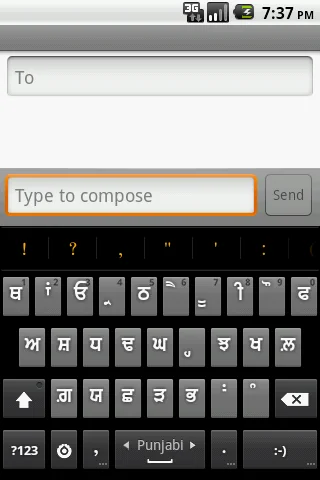
Provides input method (Keyboard) in Gurmukhi and Hindi Locale with dictionary support. Automatically toggles to Gurmukhi mode with my application called "Gurbani Searcher".
Please follow following steps to enable the keyboard:-
Android version < 4.0
1. Settings-->click Language & Keyboard on phone
2. Select Gurbani keyboard from the list.
3. Go to Gurbani Searcher application(or any text field)
4. Long click on the text field.
5. Select Inputmethod
6. Select Gurmukhi keyboard.
7. System will display warning, press "OK"
8. Go to settings of Gurmukhi Keyboard and enable Punjabi in "Input Languages".
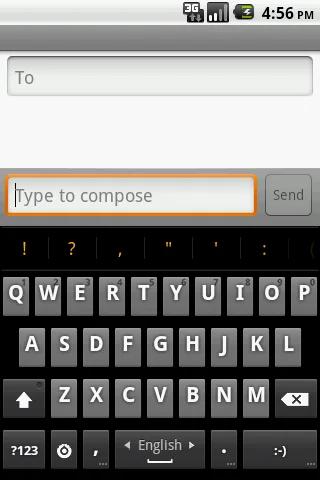
9. Go back to the application and swipe on "spacebar" to toggle between Punjabi and English. One can also enable other locales by going to settings of Gurmukhi Keyboard.
Android version 4.0 (ICS)
1. Settings-->click Language & Keyboard on phone
2. Select Gurbani keyboard from the list.
3. System will display warning, press "OK"
4. Enable Gurmukhi keyboard as default keyboard in settings.
5. Go to settings of Gurmukhi Keyboard and enable Punjabi in "Input Languages".
6. Go back to the application and swipe on "spacebar" to toggle between Punjabi and English. One can also enable other locales by going to settings of Gurmukhi Keyboard.
HTC Sense UI users OS version 4.0 and greater (ICS)(Thanks to Harkamal Singh Sandhu for the instructions below:-)
1. Once the keyboard is installed, do a hot reboot.
2. You cannot long press or swipe through the keyboards to find Gurmukhi keyboard.
3. When the keyboard is activated, you will get an icon on the top, which is of a keyboard. Drag this down and you can change the input method from HTC Sense Input to Gurmukhi.
4. Go to settings of Gurmukhi Keyboard and enable Punjabi in "Input Languages".
5. Go back to the application and swipe on "spacebar" to toggle between Punjabi and English. One can also enable other locales by going to settings of Gurmukhi Keyboard.
Please note that without the above steps, the keyboard will not show and by design(android feature), the keyboard will not get listed in application. Please do not rate the application in ignorance, I would suggest to read the instructions and enable it correctly and after doing due diligence and rate it. A bad rating out of ignorance may prevent others genuine users to take advantage. BTW, the above set of steps are applicable for any android keyboard and that's how android allows to plugin other keyboard. Also I would like to impress upon the fact that Android by default has no support for Punjabi fonts and this keyboard doesn't provide any magic to enable non-cooperating application to start supporting Punjabi fonts. This keyboard helps cooperating application (like Gurbani Searcher) to type in Punjabi fonts. I would like to re stress that the participating application should provide support for Punjabi fonts for this keyboard to work in harmony with it.
The keyboard supports following types of keyboards.
Punjabi Keyboard, Gurmukhi Keyboard, Gurbani Keyboard, Gingerbread keyboard, Hindi Keyboard.
Regards,
-Surinder Pal Singh
Please follow following steps to enable the keyboard:-
Android version < 4.0
1. Settings-->click Language & Keyboard on phone
2. Select Gurbani keyboard from the list.
3. Go to Gurbani Searcher application(or any text field)
4. Long click on the text field.
5. Select Inputmethod
6. Select Gurmukhi keyboard.
7. System will display warning, press "OK"
8. Go to settings of Gurmukhi Keyboard and enable Punjabi in "Input Languages".
9. Go back to the application and swipe on "spacebar" to toggle between Punjabi and English. One can also enable other locales by going to settings of Gurmukhi Keyboard.
Android version 4.0 (ICS)
1. Settings-->click Language & Keyboard on phone
2. Select Gurbani keyboard from the list.
3. System will display warning, press "OK"
4. Enable Gurmukhi keyboard as default keyboard in settings.
5. Go to settings of Gurmukhi Keyboard and enable Punjabi in "Input Languages".
6. Go back to the application and swipe on "spacebar" to toggle between Punjabi and English. One can also enable other locales by going to settings of Gurmukhi Keyboard.
HTC Sense UI users OS version 4.0 and greater (ICS)(Thanks to Harkamal Singh Sandhu for the instructions below:-)
1. Once the keyboard is installed, do a hot reboot.
2. You cannot long press or swipe through the keyboards to find Gurmukhi keyboard.
3. When the keyboard is activated, you will get an icon on the top, which is of a keyboard. Drag this down and you can change the input method from HTC Sense Input to Gurmukhi.
4. Go to settings of Gurmukhi Keyboard and enable Punjabi in "Input Languages".
5. Go back to the application and swipe on "spacebar" to toggle between Punjabi and English. One can also enable other locales by going to settings of Gurmukhi Keyboard.
Please note that without the above steps, the keyboard will not show and by design(android feature), the keyboard will not get listed in application. Please do not rate the application in ignorance, I would suggest to read the instructions and enable it correctly and after doing due diligence and rate it. A bad rating out of ignorance may prevent others genuine users to take advantage. BTW, the above set of steps are applicable for any android keyboard and that's how android allows to plugin other keyboard. Also I would like to impress upon the fact that Android by default has no support for Punjabi fonts and this keyboard doesn't provide any magic to enable non-cooperating application to start supporting Punjabi fonts. This keyboard helps cooperating application (like Gurbani Searcher) to type in Punjabi fonts. I would like to re stress that the participating application should provide support for Punjabi fonts for this keyboard to work in harmony with it.
The keyboard supports following types of keyboards.
Punjabi Keyboard, Gurmukhi Keyboard, Gurbani Keyboard, Gingerbread keyboard, Hindi Keyboard.
Regards,
-Surinder Pal Singh
Profile & Insights
Everything we know — and don't — about this app and its company.
Identification
- App name
- Gurmukhi Keyboard
- Developer
- Surinder Pal Singh
- Bundle ID
- com.inputmethod.gurmukhi
- App Store URL
- Open in App Store
- Category
- Productivity
- Content rating
- Not found
- Languages
- Not found
Company
- Website
- www.gurbanisearcher.com
- Tagline
- Not found
- Description
- Not found
- Founded
- Not found
- HQ / Address
- Not found
- Employees
- Not found
- Logo
- Not found
Revenue
- Verified revenue / mo
- Not found
- AI revenue estimate / mo
- Not found
- AI annual estimate
- Not found
- ML model estimate / mo
- $1.2K/mo
- Top-grossing rank
- Not found
- All-time revenue
- Not found
- Pricing
- Not found
Founder
- Name
- Not found
- X / Twitter
- Not found
- Not found
- GitHub
- Not found
- X followers
- Not found
- Public statements
- Not found
Funding
- Total raised
- Not found
- Last round
- Not found
- Investors
- Not found
- Crunchbase
- Not found
- AngelList
- Not found
Press & Links
- Articles found
- Not found
- Listed on
- Not found
- Blog
- Not found
- Press / News
- Not found
Contacts & Socials
- Socials
- Not found
- Not found
- Phone
- Not found
- Contact page
- Not found
- About page
- Not found
📈Ratings growth14,451 ratings+27% lifetimeShow 3-year history estimate ▾
Tracked (1 weeks) Pre-tracking estimate (37 weeks) · model-based, ±5% noise · anchored to release date and current value
Profile is built from iTunes Lookup + developer site scrape + ML revenue model. Empty fields show "Not found" — additional sources (Crunchbase, X, IndieHackers, Acquire.com) coming.
More Productivity
Microsoft Outlook
★ 4.8 · 8,891,395 reviews
Google Drive – online backup
★ 4.8 · 7,526,498 reviews
ChatGPT
★ 4.8 · 7,136,919 reviews
Yahoo Mail – Alles im Blick
★ 4.7 · 4,623,459 reviews
HP
★ 4.6 · 4,011,497 reviews
Google Docs
★ 4.8 · 3,078,214 reviews
Microsoft Word
★ 4.7 · 2,843,856 reviews
Gmail – E-Mail von Google
★ 4.7 · 2,406,337 reviews
Browse BU Analytics
📚 All 55,000+ Books
🜍 Alchemy & Hermeticism
🔮 Magic & Ritual
🌙 Witchcraft & Paganism
⭐ Astrology & Cosmology
🃏 Divination & Tarot
📜 Productivity
✡️ Kabbalah & Jewish Mysticism
🕉️ Mysticism & Contemplation
🕊️ Theosophy & Anthroposophy
🏛️ Freemasonry & Secret Societies
👻 Spiritualism & Afterlife
📖 Sacred Texts & Gnosticism
👁️ Supernatural & Occult Fiction
🧘 Spiritual Development
📚 Esoteric History & Biography
Info
About BU Analytics