49
BU Score
Emerging
Controller-PC Remote & Gamepad
✍️ BU Analytics Review
“
Controller-PC Remote & Gamepad is an Android app from MoboAlien in the Tools category, currently rated 3.1★ across 4,292 ratings. Initial signal reads as largely positive sentiment, users highlighting consistency and feature depth.
Our BU Score puts it at 49 — Emerging (early traction worth watching). For a Tools app, that means early traction worth watching.
Track changes month-over-month in the Performance section below — live snapshot history and revenue forecast included.
📊 Performance Tracking LIVE
Loading…
Rating
—
Reviews
—
Forecast Revenue / mo
—
Snapshots tracked
0
since first record
Range:
💰 Forecast Revenue / mo
MODELRevenue forecast computed from BU's 234 trigger model on each snapshot. Calibrated against ground-truth from 58 verified-revenue apps.
🔬Forecast Breakdown — Why This Estimate?Top 4 of 4 triggers
Our ML model uses 200+ signals from public data. These are the most influential for this app:
| Low install base (4,292 ratings)METRIC | +$1,500 | |
| Below-average rating (3.1★)METRIC | −$1,500 | |
| Mature app (8y old)METRIC | +$1,500 | |
| Ad-supported / freemiumMETRIC | +$600 |
METRIC = structural app data · REVIEW = mined from user reviews · ✓ VERIFIED = Stripe-verified anchor (TrustMRR)
📈 Reviews Growth
LIVECumulative review count from first BU snapshot. Each point = a tracked update.
⭐ Rating Trend
LIVEAverage rating evolution. Updates with each new review batch.
🗓️ Snapshot Timeline
HISTORYEach bar shows a tracked update and the metric delta from the previous snapshot.
App Specs
🔐 Own this app? Claim & verify MRR →🔖 v4.4-free🔄 updated 4y ago📂 Tools💰 Free📺 Ad-supported🚀 Launched 2017 (8y old)
📝 About this app
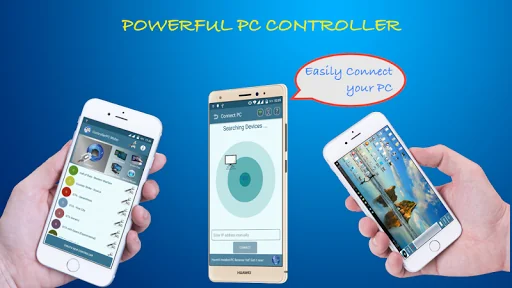
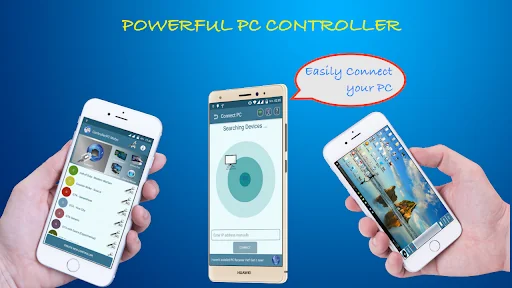
App to control PC remotely via Wi-fi. You will need to install PC Remote Controller Receiver in your PC.
<b>WARNING : </b> Some Antivirus may flag it as Virus, but it is NOT, and you may need to explicitly allow the application. DON'T download if you don't trust.
<b>Download PC Controller Receiver Application Setup from here</b>
https://github.com/Moboalien/Controller/raw/main/controller_pc_v18.zip
<b>Download PC Controller Receiver Portable version.(Not recommended use only if first one doesn't work)</b>
https://github.com/Moboalien/Controller/raw/main/controller_pc_v18_portable.zip
<b>NOTE</b>:- Create <b>Wifi hotspot from your smartphone</b> and connect your PC, if you are facing lags or getting disconnected because it can be due to weak Wifi signals.
<b>Features:</b>
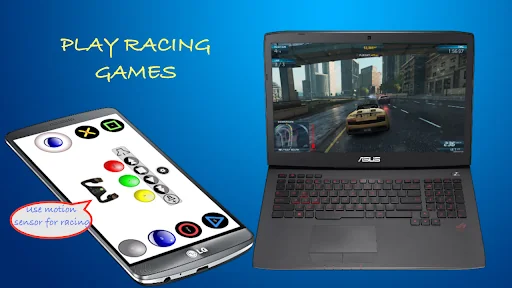
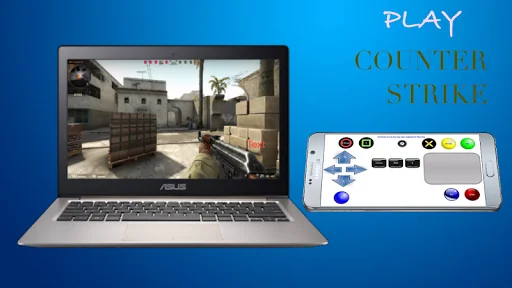
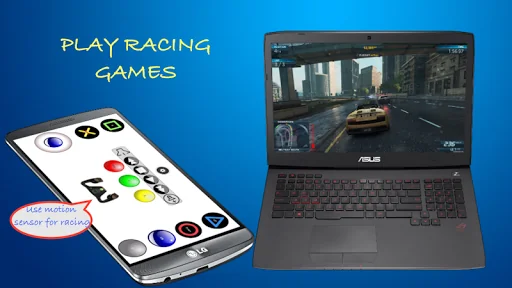
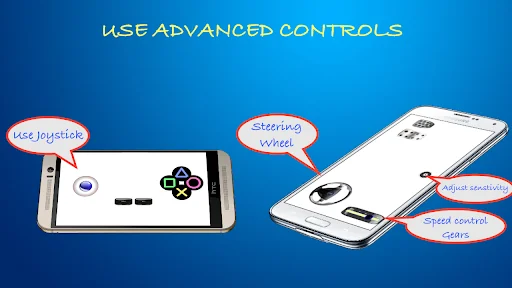
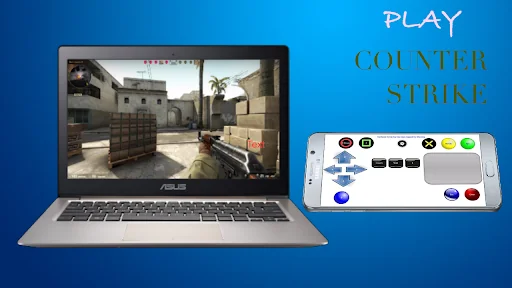
• Can be used to Play Games using android device as <b>Joystick / Controller</b>.
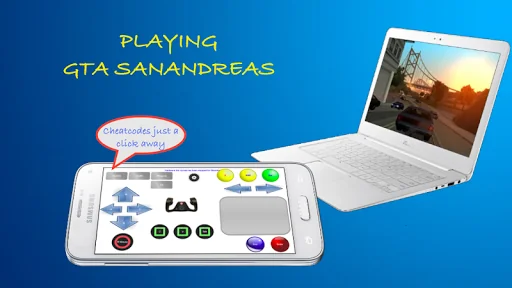
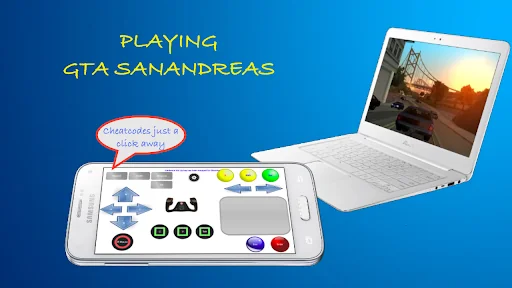
• In built Controllers for many popular games such as <b>Counter Strike, GTA Sanandreas, Call of Duty, NFS Most Wanted</b> etc. which can be highly customised.
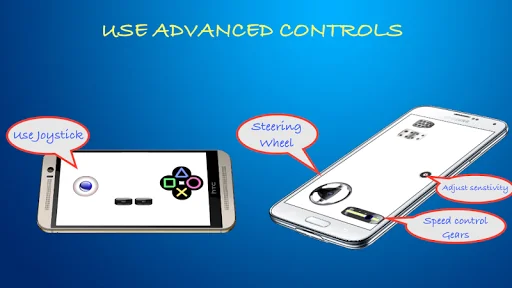
• Users can create their own <b>custom Joystick</b> and Map keyboard keys to it.
• <b>Steering controls</b> can use <b>G-sensor/ Wheel</b> to enhance gaming experience.
• Use <b>Speed Gear</b> to limit speed in racing games (Experimental).
• Use Cheat Button to enter <b>Cheatcode</b> by a single click.
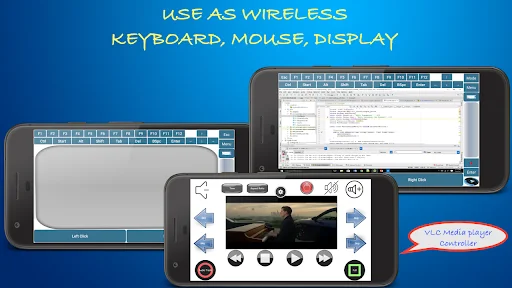
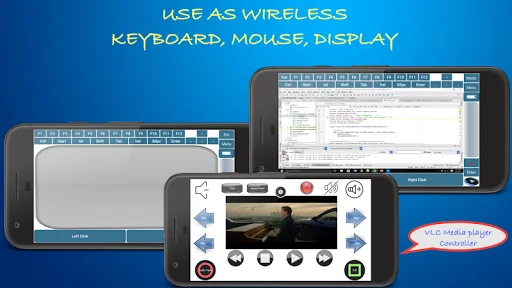
• It enables android devices to be used as <b>Wireless Keyboard/Mouse</b>
• It can also be used as <b>Touchscreen Display</b> of PC
• Use Command Button to run a <b>DOS command</b> by a single click.
• In built <b>Media player</b> Controllers.
• <b>Multiplayer Support</b> (Two devices can be connected simultaneously).
<b>Ad-Free Version :- </b>https://play.google.com/store/apps/details?id=com.moboalien.satyam.controller.paid
<b>How to Connect ?</b>:
• Install the 'Receiver Application' in your PC from the above given link and set the Key for connection. Make sure you allow access to Private Network when asked by Firewall.
• Connect your android device and PC to same Wi-fi Network .You may create wi-fi hotspot from your smartphone and connect Your PC.(Ignore this step if already using same wifi)
• Open the app on your smartphone and click on any Controller you want to use, it will take you to "Connect PC" screen if not connected already.
• Wait till it finds your PC and click on the icon shown when it finds your PC (Make sure the PC receiver app is running on your PC. It runs in background, check for the icon in the "System tray" present at bottom-right corner of your PC screen).
• It will ask for the Key that you set in step 1.
• Once you entered the Key you get connected to your PC.
• If it is unable to find your PC then click on the 'Help' icon on the top right corner of 'Connect PC' screen to check possible solutions.
• See Demo Video : https://youtu.be/xW4FqeemqHg?list=PLl-2bS8NUbhTi5h6PNbRY0212hP-k-UNM&t=698
<b>Connecting using Data Cable</b>
Connect your phone to PC using data cable and enable USB tethering in your smartphone. Then check IP address of your PC corresponding to tethered interface (it should be like 192.168.42.xxx) and type it manually on Connect screen.
<b>Limitations</b>:
• May not work for some games.
• Receiver available only for Microsoft Windows.
• Mouse mode may not work when System ask for UAC permission.(Windows security feature)
<b>WARNING : </b> Some Antivirus may flag it as Virus, but it is NOT, and you may need to explicitly allow the application. DON'T download if you don't trust.
<b>Download PC Controller Receiver Application Setup from here</b>
https://github.com/Moboalien/Controller/raw/main/controller_pc_v18.zip
<b>Download PC Controller Receiver Portable version.(Not recommended use only if first one doesn't work)</b>
https://github.com/Moboalien/Controller/raw/main/controller_pc_v18_portable.zip
<b>NOTE</b>:- Create <b>Wifi hotspot from your smartphone</b> and connect your PC, if you are facing lags or getting disconnected because it can be due to weak Wifi signals.
<b>Features:</b>
• Can be used to Play Games using android device as <b>Joystick / Controller</b>.
• In built Controllers for many popular games such as <b>Counter Strike, GTA Sanandreas, Call of Duty, NFS Most Wanted</b> etc. which can be highly customised.
• Users can create their own <b>custom Joystick</b> and Map keyboard keys to it.
• <b>Steering controls</b> can use <b>G-sensor/ Wheel</b> to enhance gaming experience.
• Use <b>Speed Gear</b> to limit speed in racing games (Experimental).
• Use Cheat Button to enter <b>Cheatcode</b> by a single click.
• It enables android devices to be used as <b>Wireless Keyboard/Mouse</b>
• It can also be used as <b>Touchscreen Display</b> of PC
• Use Command Button to run a <b>DOS command</b> by a single click.
• In built <b>Media player</b> Controllers.
• <b>Multiplayer Support</b> (Two devices can be connected simultaneously).
<b>Ad-Free Version :- </b>https://play.google.com/store/apps/details?id=com.moboalien.satyam.controller.paid
<b>How to Connect ?</b>:
• Install the 'Receiver Application' in your PC from the above given link and set the Key for connection. Make sure you allow access to Private Network when asked by Firewall.
• Connect your android device and PC to same Wi-fi Network .You may create wi-fi hotspot from your smartphone and connect Your PC.(Ignore this step if already using same wifi)
• Open the app on your smartphone and click on any Controller you want to use, it will take you to "Connect PC" screen if not connected already.
• Wait till it finds your PC and click on the icon shown when it finds your PC (Make sure the PC receiver app is running on your PC. It runs in background, check for the icon in the "System tray" present at bottom-right corner of your PC screen).
• It will ask for the Key that you set in step 1.
• Once you entered the Key you get connected to your PC.
• If it is unable to find your PC then click on the 'Help' icon on the top right corner of 'Connect PC' screen to check possible solutions.
• See Demo Video : https://youtu.be/xW4FqeemqHg?list=PLl-2bS8NUbhTi5h6PNbRY0212hP-k-UNM&t=698
<b>Connecting using Data Cable</b>
Connect your phone to PC using data cable and enable USB tethering in your smartphone. Then check IP address of your PC corresponding to tethered interface (it should be like 192.168.42.xxx) and type it manually on Connect screen.
<b>Limitations</b>:
• May not work for some games.
• Receiver available only for Microsoft Windows.
• Mouse mode may not work when System ask for UAC permission.(Windows security feature)
Profile & Insights
Everything we know — and don't — about this app and its company.
Identification
- App name
- Controller-PC Remote & Gamepad
- Developer
- MoboAlien
- Bundle ID
- com.moboalien.satyam.controller
- App Store URL
- Open in App Store
- Category
- Tools
- Content rating
- Not found
- Languages
- Not found
Company
- Website
- Not found
- Tagline
- Not found
- Description
- Not found
- Founded
- Not found
- HQ / Address
- Not found
- Employees
- Not found
- Logo
- Not found
Revenue
- Verified revenue / mo
- Not found
- AI revenue estimate / mo
- Not found
- AI annual estimate
- Not found
- ML model estimate / mo
- $792/mo
- Top-grossing rank
- Not found
- All-time revenue
- Not found
- Pricing
- Not found
Founder
- Name
- Not found
- X / Twitter
- Not found
- Not found
- GitHub
- Not found
- X followers
- Not found
- Public statements
- Not found
Funding
- Total raised
- Not found
- Last round
- Not found
- Investors
- Not found
- Crunchbase
- Not found
- AngelList
- Not found
Press & Links
- Articles found
- Not found
- Listed on
- Not found
- Blog
- Not found
- Press / News
- Not found
Contacts & Socials
- Socials
- Not found
- Not found
- Phone
- Not found
- Contact page
- Not found
- About page
- Not found
📈Ratings growth4,292 ratings+28% lifetimeShow 3-year history estimate ▾
Tracked (1 weeks) Pre-tracking estimate (37 weeks) · model-based, ±5% noise · anchored to release date and current value
Profile is built from iTunes Lookup + developer site scrape + ML revenue model. Empty fields show "Not found" — additional sources (Crunchbase, X, IndieHackers, Acquire.com) coming.