ML revenue forecast.
Calibrated against 77129 apps in this category.
Confidence band
±15%
High — many comparable apps with verified data
At a glance
Earns 2.12× more than the category median (189/mo).
Ranks #14,913 of 77,129 in Tools (top 19.3% by revenue).
Launched Dec 29, 2019 · last updated Jul 26, 2025.
What the app looks like
Live screenshots from the Play Store, captured by our snapshot worker. Tap any image to enlarge.
Copy Paste any Text on Screen's revenue trajectory
Forecast revenue from snapshot history. Last 1 months.
Where Copy Paste any Text on Screen sits in Tools
Revenue distribution of 77129 comparable apps. Copy Paste any Text on Screen highlighted.
Copy Paste any Text on Screen vs comparable apps
Revenue trajectory side-by-side. Bold = Copy Paste any Text on Screen, ghosted = peers.
App spec
Version
12.0
Last update
Jul 26, 2025
Launched
Dec 29, 2019
Price
Free
Monetization
Free
What Copy Paste any Text on Screen actually does (from store listing)
Copy app is the best app to copy on screen text with ease and you can paste it wherever you want. You can also edit and translate the copied textual content into different languages. To use the app follow the below given steps:
<b>Accessibility Service Permission</b>
The accessibility service permission is used to detect any text on any screen for copy , save , edit or translate text using this app.
Step1: To copy textual content from screen. Press START on the home screen and you will se…
Copy app is the best app to copy on screen text with ease and you can paste it wherever you want. You can also edit and translate the copied textual content into different languages. To use the app follow the below given steps:
Accessibility Service Permission The accessibility service permission is used to detect any text on any screen for copy , save , edit or translate text using this app.
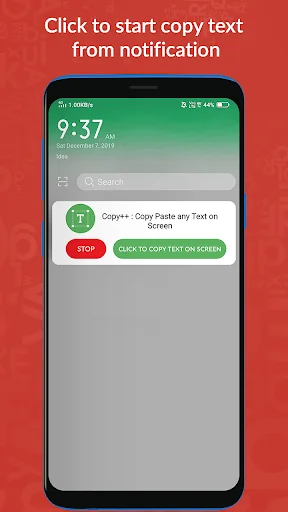
Step1: To copy textual content from screen. Press START on the home screen and you will see a notification of this app.
Step2: Open any application, file or website from where you want to copy and paste the text.
Step3: Go to notification area and tap on CLICK TO START COPY.
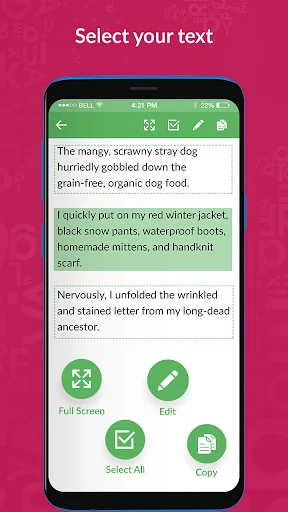
Step4: You will see green boxes on the screen, tap on the boxes whose textual content you want to copy.
Step5: On the top you will see two buttons. First button is for fullscreen and second button is for selecting all the content from screen.
Step6: Tap on any box and at the top right corner you will see an option with copy symbol, tap on it to copy the text to clipboard.
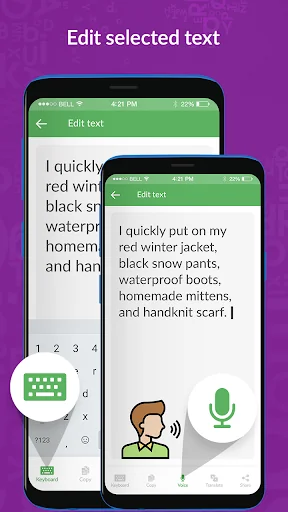
Step7: Press the pencil icon on the top if you want to edit the copied content. After pressing it EDIT TEXT window will open.
Step8: Here, you will see multiple options below. Click the KEYBOARD option to start writing.
Step9: Click the COPY option for copying the edited text.
Step10: Click the START option for voice editing and press the same button again to stop voice editing.
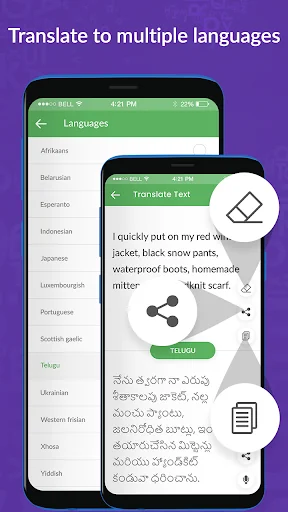
Step11: Click on the TRANSLATE option if you want to translate the edited text.
Step12: In TRANSLATE TEXT window on the upper portion you will be seeing your edited content and at the bottom you will be seeing its translation.
Step13: Tap on CHOOSE LANGUAGE and you will be seeing list of many world wide languages. Select the language in which you want to translate.
Step14: On the upper portion at right side you will see three buttons. First button is to erase all the textual content, the second button is to share it and third button is to copy it.
Step15: In the lower portion also you will see three options. Here the first button is for copying the translated text, the second button is for sharing it and the third button is for pronouncing it.
Step16: After completing translation you will be moved back to the EDIT TEXT window. There, on the top right corner you will see the save button.
Step17: You can find all your saved content from SAVED TEXT option present on the home screen.
Step18: To stop the service click on the STOP button which is available on the home screen and also on notification area.
If still you are having some doubt then to watch tutorial, tap on question mark present on the top of the home screen. So, hurry up and download the app now to copy and paste text easily from your mobile phone’s screen.
Comparable Android apps
The five apps in Tools with the closest revenue to Copy Paste any Text on Screen. Click any to see its detail page.
Each forecast combines App Store rating, ratings count, monetisation model, pricing tier, IAP signals and ad-supported flag.
The base estimate is then multiplied by a per-category scaling factor learned from apps with founder-verified MRR.
Every number on this page comes from public APIs and bumetric's own snapshot history.
Full methodology covers input variables, accuracy bands per category and how we treat apps without comparable anchors.
See also the live data on Copy Paste any Text on Screen's tracker page for current rating, reviews and snapshot timeline.
Building something similar? Get a free AI audit with $-revenue forecasts for every recommendation.


 פרטי רכב בישראל - CheckCar
 LED Scrolling Text Display
 Speedometer GPS & Compass
 Ping Test Tool
 Intruder Detector - Spy Selfie