ML revenue forecast.
Calibrated against 51929 apps in this category.
Confidence band
±15%
High — many comparable apps with verified data
At a glance
Earns 4.09× more than the category median (168/mo).
Ranks #3,086 of 51,929 in Lifestyle (top 5.9% by revenue).
Launched Oct 21, 2011 · last updated Oct 18, 2025.
What the app looks like
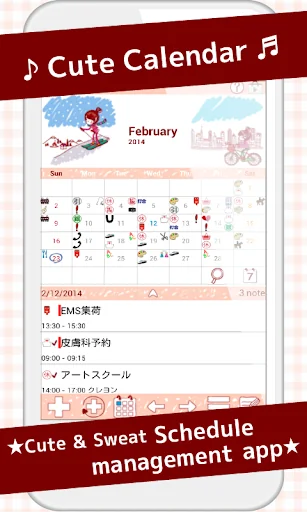
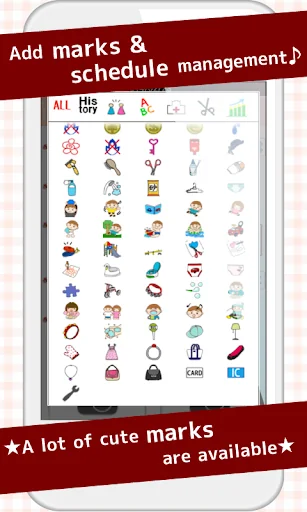
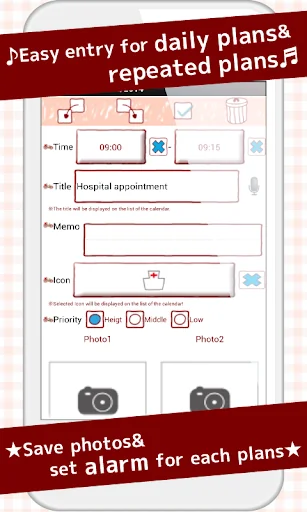
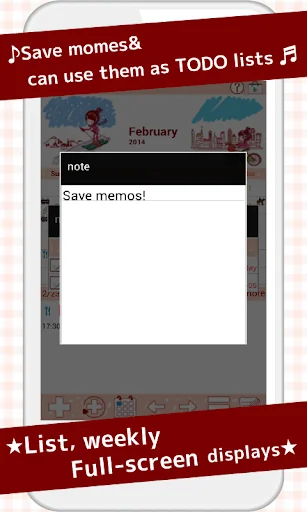
Live screenshots from the Play Store, captured by our snapshot worker. Tap any image to enlarge.
Cute Calendar's revenue trajectory
Forecast revenue from snapshot history. Last 3 months.
Where Cute Calendar sits in Lifestyle
Revenue distribution of 51929 comparable apps. Cute Calendar highlighted.
Cute Calendar vs comparable apps
Revenue trajectory side-by-side. Bold = Cute Calendar, ghosted = peers.
App spec
Version
1.7.4
Last update
Oct 18, 2025
Launched
Oct 21, 2011
Price
Free
Monetization
Free
What Cute Calendar actually does (from store listing)
It has multiple functions! You can create and save plans and create repeated plans separately.
You can switch the images of calendar by tapping images. You can select images from the album of the mobile or take new photos to customize the calendar!
You can add marks on the date to show other plans of your day!
The initial window is the calendar.
When you select an icon for a daily plan or a repeated plan, the mark is now reflected on the date of the calendar. You can select and save 4 …
It has multiple functions! You can create and save plans and create repeated plans separately.
You can switch the images of calendar by tapping images. You can select images from the album of the mobile or take new photos to customize the calendar!
You can add marks on the date to show other plans of your day!
The initial window is the calendar.
When you select an icon for a daily plan or a repeated plan, the mark is now reflected on the date of the calendar. You can select and save 4 icons each date.
*Icon display*
Top left → The icon of the top priority repeated plan will be displayed here. Top left icon is only for the repeated plan.
Bottom left → The icon of the top priority of the daily plan will be displayed here.
Top right → The icon of the second priority of the daily plan will be displayed here.
Top bottom → The icon of the third priority of the daily plan will be displayed here.
*How to add marks*
When you don't need to set the icon in a daily or a repeated plan, press Menu button → Mar k→ select a mark → tap the date to add mark on the date.
**How to use Calendar**
1.「Add」button : Select the day → press Add button to create a new plan for the selected day.
2.「Repeat」button: Create a repeated plans.
3.「Today」button: Go back to the today's date.
4.「Left」&「Right」button: Move the date right to left.
5.「List」button: You can see saved plans on the list.
**How to save a plan**
1. Press Add button of the calendar.
2. Move to the Plan Edit Window.
*Description of the Plan Edit Window*
From the left-top window
1.「Move the plan to the previous day」button: You can move saved plan to the previous day.
2.「Move the plan to the next day」button: You can move saved plan to the next day.
3.「Check」button: Press this checkbox when you have done your plan, then a red checkmark will be displayed on the list of the calendar. You can understand the plan has been done with one look.
4.「Delete」button: Delete the plan.
**How to save a plan**
3.「Time」: Enter start and end time.
4.「Title」: Enter the title of the plan. This title will be displayed on the list of the calendar.
5.「Memo」:You can save a memo for the plan.
6.「Icon」: You can select an icon for each title.
7.「Photo」: You can save 2 photos a day.
8. After entering all the data, press 「Back」button of the mobile then the plan will be saved automatically.
9. You can confirm saved plans on the list of the calendar.
**How to save repeated plans**
1. Press 「Repeat」button of the calendar.
2. Move to 「Alarm List」window.
3. Press 「New」.
4. Move to 「Alarm Registration」window.
5. 「Title」: Enter the title of the plan. This title will be displayed on the list of the calendar.
6.「Memo」:You can save a memo for the plan.
7. 「Date」: Select start and end date. When you do not enter nothing end date, your plan will be repeated continually.
8. 「Time」: Enter start and end time.
9. 「Week」: Select the week days of a repeat. All checkboxes should be checked when you select a repeat by date below.
10. 「Which week」: Select the number of week of a repeat. There are two choices here to calculate the repeat.
a) Calculate by the number of times a week. Example: Count the second Monday and the forth Wednesday of the month.
b) Calculate by the week of a week. Example: Count the second week of Monday and the forth week of Wednesday of the month.
11. 「End of month」: Check here if it is only for the end of the month.
12. 「Specified day」: You can select date to set the repeat. All checkboxes of 「Week」above should be checked when you select a repeat by date.
13. 「Alarm」: Set the alarm for your repeated plans.
14. Press 「Save」button above the window to save the plan.
15. Go back to the 「Alarm List」window automatically. You can confirm the saved plans on the list.
16. Press 「Back」button to go back to the calendar.
※Pay version: No ads display
Comparable Android apps
The five apps in Lifestyle with the closest revenue to Cute Calendar. Click any to see its detail page.
Each forecast combines App Store rating, ratings count, monetisation model, pricing tier, IAP signals and ad-supported flag.
The base estimate is then multiplied by a per-category scaling factor learned from apps with founder-verified MRR.
Every number on this page comes from public APIs and bumetric's own snapshot history.
Full methodology covers input variables, accuracy bands per category and how we treat apps without comparable anchors.
See also the live data on Cute Calendar's tracker page for current rating, reviews and snapshot timeline.
Building something similar? Get a free AI audit with $-revenue forecasts for every recommendation.


 Bien’ici annonces immobilières
 Horoscope - Daily & Zodiac
 Construction Simulator 3D Game
 Bói Bài Siêu Thánh 2026
 Metaphoric cards: Xeen. Lite