What Remote Fingerprint Unlock actually does (from store listing)
<h2><i><b>Remotely and securely unlock your Windows PC using your Android’s fingerprint sensor.</b></i></h2>
<b>For the application to work, you need to download and install the Fingerprint Credential Provider module on your Windows PC (Windows Vista/7/8/10/11) from here: https://bit.ly/rfu-installer</b>
<b>If you've lost your PRO upgrade after reinstall, need help with setting up accounts or Wake on LAN, or for any other issue that you may encounter, please be sure to check out the F.A.Q.…
Remotely and securely unlock your Windows PC using your Android’s fingerprint sensor.
For the application to work, you need to download and install the Fingerprint Credential Provider module on your Windows PC (Windows Vista/7/8/10/11) from here: https://bit.ly/rfu-installer
If you've lost your PRO upgrade after reinstall, need help with setting up accounts or Wake on LAN, or for any other issue that you may encounter, please be sure to check out the F.A.Q. : https://bit.ly/3cuJUgG
The module only runs when the logon screen is active, so, in order to connect your computer, add an account, etc., simply lock your computer (Windows Key + L, or from the Start Menu).
How to use the app: Firstly, be sure that you have installed the Windows module found at the link above.
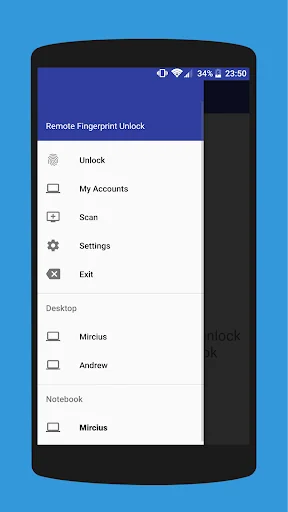
Go to the Scan menu (making sure that your computer is on the logon screen) and pull to refresh (uses Wi-Fi) or press the add button and use the preferred method of unlocking.
Select your computer and press Save.
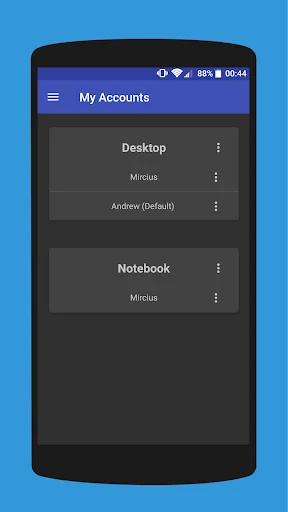
Now, go to the Accounts menu, tap the 3-dot menu button of the computer and then Add Account. Enter the Windows account that you want to unlock. Use the displayed name exactly as on the lockscreen (case sensitive, including the domain name if using domain account), together with the corresponding password. Scan your fingerprint and press Add.
For PRO users: to select one of the added accounts as default, tap on the 3-dot menu button then select Set As Default.
To configure a computer, tap on the 3-dot menu button of that computer.
For PRO users: to enable Wake on Lan, go to the computer's configuration menu and enable Send WoL Packet. Make sure the MAC address is correct!
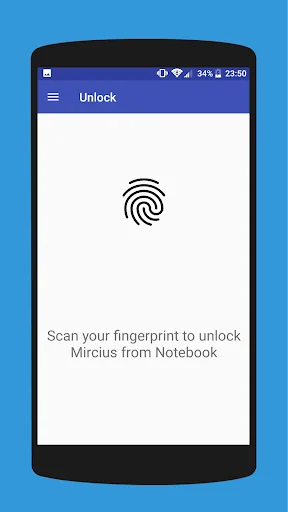
You’re now all set! Go to the Unlock menu and scan your fingerprint. You should now see your computer unlocked.
Features: • Log-into/Unlock an account
• Simple, user-friendly UI
• Secure
• Local/Microsoft/Domain* accounts support
• Light/Dark/Black (AMOLED-friendly) UI themes
• Local network/Bluetooth/Wi-Fi Tethering/USB Tethering support
* 1.2.0 version of the Windows module required. Usage: when adding an account using the Android app, simply add the full name of the account, including the domain, separated by a slash ( ‘\’ ). For example: test\account.name
PRO features: • Ads removal
• Unlimited computers and accounts per computer
• Wake-On-LAN
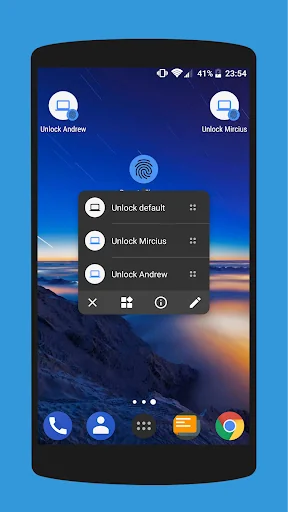
• Unlock widgets
• Launcher shortcuts
Being built with security in mind, the app: • Does not use an intermediate server – all communication is done directly with the Windows module.
• Encrypts the stored information in the user’s computer using a unique key that identifies the app installation.
• Does not store any password in the Android app.
• Can be used on a public network – all sent data is encrypted.
• Prevents attackers from also gaining access to your computer – if an attacker knows your PIN and adds his own fingerprint, the app is immediately notified and automatically invalidates its own key, which makes the stored private app information lost forever.
Be sure to allow incoming and outgoing traffic (both TCP and UDP, on port 4009) in your firewall for the LogonUI.exe process found at C:\Windows\System32. You will be asked at the installation if you want this done automatically for you if you are using Windows Firewall.
Please check the F.A.Q. for more troubleshooting tips and questions or send me an email if you have any questions regarding the app.
Comparable Android apps
The five apps in Tools with the closest revenue to Remote Fingerprint Unlock. Click any to see its detail page.
Each forecast combines App Store rating, ratings count, monetisation model, pricing tier, IAP signals and ad-supported flag.
The base estimate is then multiplied by a per-category scaling factor learned from apps with founder-verified MRR.
Every number on this page comes from public APIs and Bumetric's own snapshot history.
Full methodology covers input variables, accuracy bands per category and how we treat apps without comparable anchors.
See also the live data on Remote Fingerprint Unlock's tracker page for current rating, reviews and snapshot timeline.
Building something similar? Get a free AI audit with $-revenue forecasts for every recommendation.

 DBA Sound Meter: Sound Measure
 Glextor App Folder Organizer
 lbs kg Converter
 香蕉VPN—最快最稳的VPN 亚洲优化永远连接的加速专家
 Smart Switch Mobile: Transfer