What STETHOSCOPE, TELEMED, MHEALTH actually does (from store listing)
REMOTE STETHOSCOPE application:
► can replace a traditional stethoscope when it is impossible or difficult to use a common device
► can be used with any types of wired/wireless headsets, headphones, and with other smartphones
► provides interaction of smartphones with various operating systems
► amplifies the sound registered by smartphone microphone by 3 times
► amplifies quiet sounds without changing the overall volume
► can remove parasitic noises
► saves the recording of auscultati…
► can replace a traditional stethoscope when it is impossible or difficult to use a common device
► can be used with any types of wired/wireless headsets, headphones, and with other smartphones
► provides interaction of smartphones with various operating systems
► amplifies the sound registered by smartphone microphone by 3 times
► amplifies quiet sounds without changing the overall volume
► can remove parasitic noises
► saves the recording of auscultation with amplified sound
► allows sharing and reproducing the recording more than once
The application was designed by hearing aid development engineers.
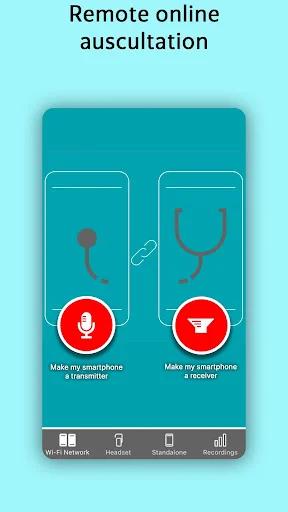
【WI-Fi Network】 - Wi-Fi online diagnostics mode. Choose a role for your phone: “Receiver” or “Transmitter”
“Transmitter”:
• During the initial start-up of the “Wi-Fi Network” mode with the “Transmitter” role you will receive a message with an offer to invite another user to connect as a “Receiver”.
• You can use the “List of connected devices” button to track the connected Receiver smartphones.
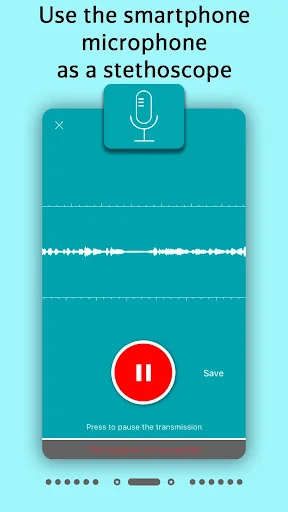
• Press the “Start” button to begin auscultation.
• You can pause the transmission of audio signal by pressing “Pause”.
• Press the cross button in the upper part of the screen to finish your work.
• Once the transmission is completed, the recording will be automatically saved in the “Recordings” section.
“Receiver”:
• During the initial start-up of the “Wi-Fi Network” mode with the “Receiver” role the application will automatically search for available “Transmitters” and automatically connect with them. You can choose the Receiver smartphone you need. To do that, press the “Transmitter” button and choose the required Receiver smartphone.
• Press the “Start” button to begin auscultation.
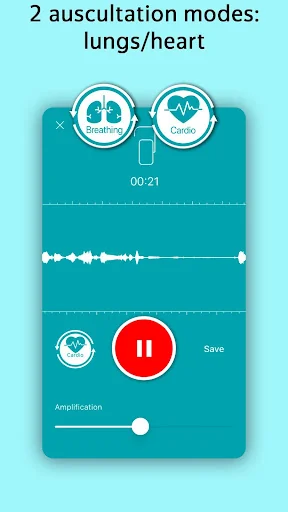
• Amplify the sound as necessary using the “Amplification” regulator or perform a more detailed adjustment using the “Sound effects” tab.
• Use the “Sound effects” section to customize the sound to your hearing and make it more intelligible.
- 3 modes of sound personalization to your hearing (preselected, can be adjusted)
- Function of quiet sounds amplification.
- Low frequencies volume.
- High frequencies volume.
• Press “Pause” to pause the recording.
• To save the recording and go to the list of previously saved recordings press “Save”
【Standalone】 - mode for recording audio material with further diagnostics
• Press the “Start” button to begin the recording.
• Press “Pause” to pause the recording.
• Press the cross button in the upper part of the screen to finish your work
• To save the recording and go to the list of previously saved recordings press “Save”
【Headset】 - mode for Bluetooth headset.
• Connect the headset before you start the recording.
• Press the “Start” button to begin auscultation.
• Amplify the sound as necessary using the “Amplification” regulator or perform a more detailed adjustment using the “Sound effects” tab.
• Press “Pause” to pause the recording.
• Press the cross button in the upper part of the screen to finish your work
• To save the recording and go to the list of previously saved recordings press “Save”
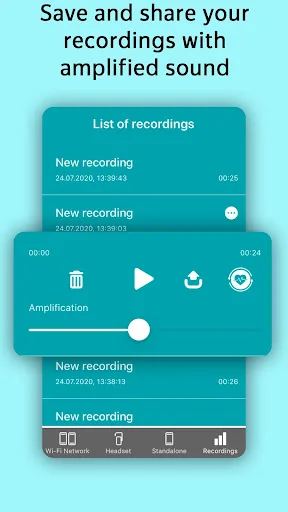
【Recording】 - list of all recordings from all patients.
• Listen to the required recording again.
• Amplify the sound as necessary using the “Amplification” regulator or perform a more detailed adjustment using the “Sound effects” tab.
• Press the “Details” button to view the details of the recording.
- Press the Pencil in the upper part of the screen to rename the recording.
- Press the “Start” button to listen.
- Amplify the sound as necessary using the “Amplification” regulator or perform a more detailed adjustment using the “Sound effects” tab.
- Delete the recording if necessary
- Send the recording to another phone in any convenient way using the “Share” button
Comparable Android apps
The five apps in Medical with the closest revenue to STETHOSCOPE, TELEMED, MHEALTH. Click any to see its detail page.
Each forecast combines App Store rating, ratings count, monetisation model, pricing tier, IAP signals and ad-supported flag.
The base estimate is then multiplied by a per-category scaling factor learned from apps with founder-verified MRR.
Every number on this page comes from public APIs and bumetric's own snapshot history.
Full methodology covers input variables, accuracy bands per category and how we treat apps without comparable anchors.
See also the live data on STETHOSCOPE, TELEMED, MHEALTH's tracker page for current rating, reviews and snapshot timeline.
Building something similar? Get a free AI audit with $-revenue forecasts for every recommendation.


 Portal Pacjenta CMP
 FreeStyle LibreLink – MX
 Drug Counselling & Medication
 Mit Sygehus
 Mi Vademecum Argentina